Access Management
The Access Management dashboard in Yeedu enables users/groups to manage access of tenants along with workspaces and clusters. There are 4 tabs in Access Management: Platform Roles, Tenant Roles, Clusters, Workspaces.
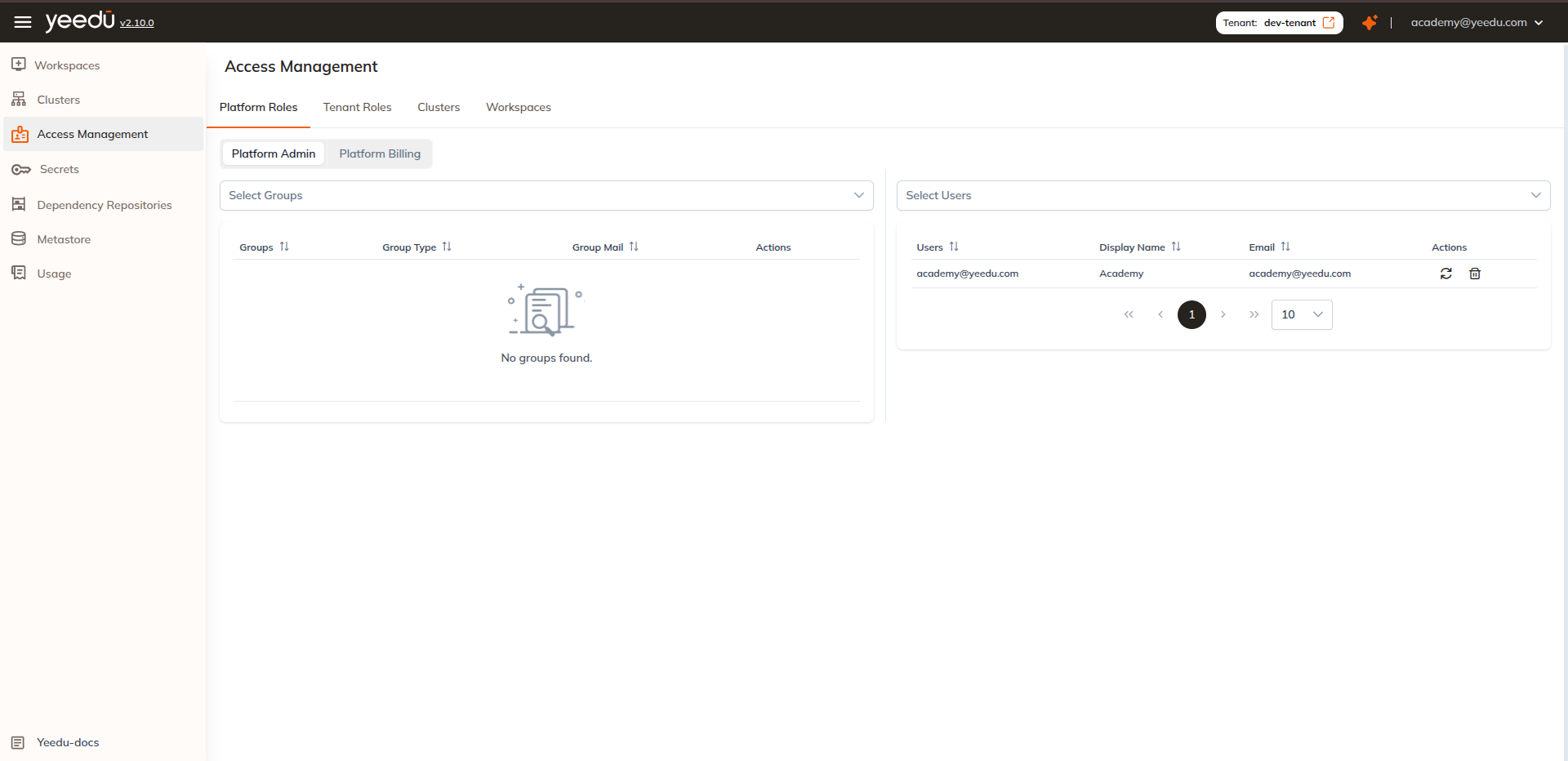
We use the same two-panel layout on every tab: a Groups panel on the left and a Users panel on the right. Each panel has its own picker dropdown, its own sortable table and its own pager (page-size selector, default 10).
Platform Roles
The Platform Roles tab has two role pills: Platform Admin (selected by default) and Platform Billing.
- Left panel: a Select Groups picker over the table
Groups | Group Type | Group Mail | Actions. - Right panel: a Select Users picker over the table
Users | Display Name | Email | Actions. - Row Actions in both tables: a sync/refresh icon and a delete icon.
Platform Admin
Platform-level role. Full access to create and manage tenants and perform all operations across all tenants.
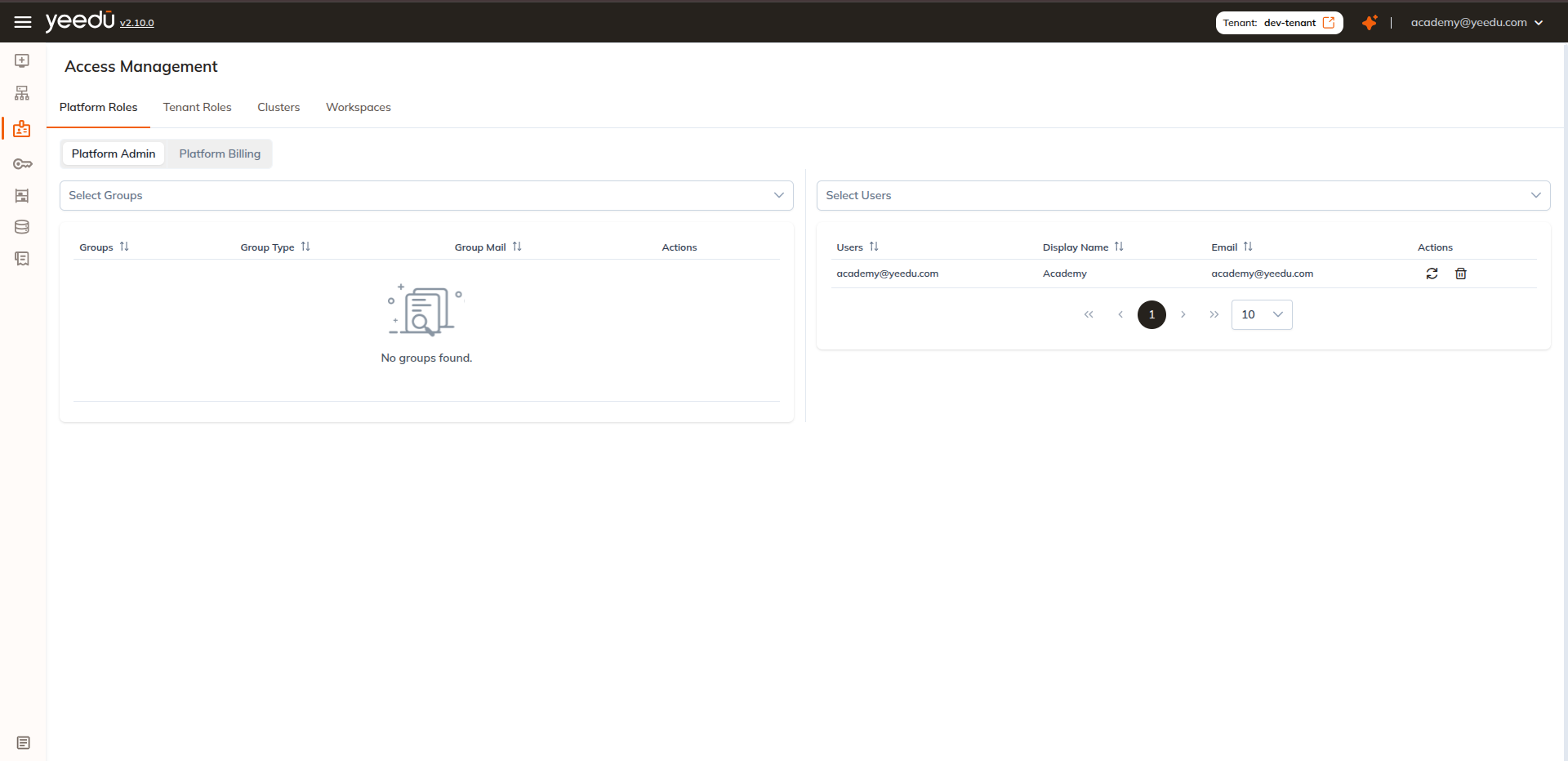
Platform Billing
Platform-level role. Can view and manage billing information across all tenants.
Tenant Roles
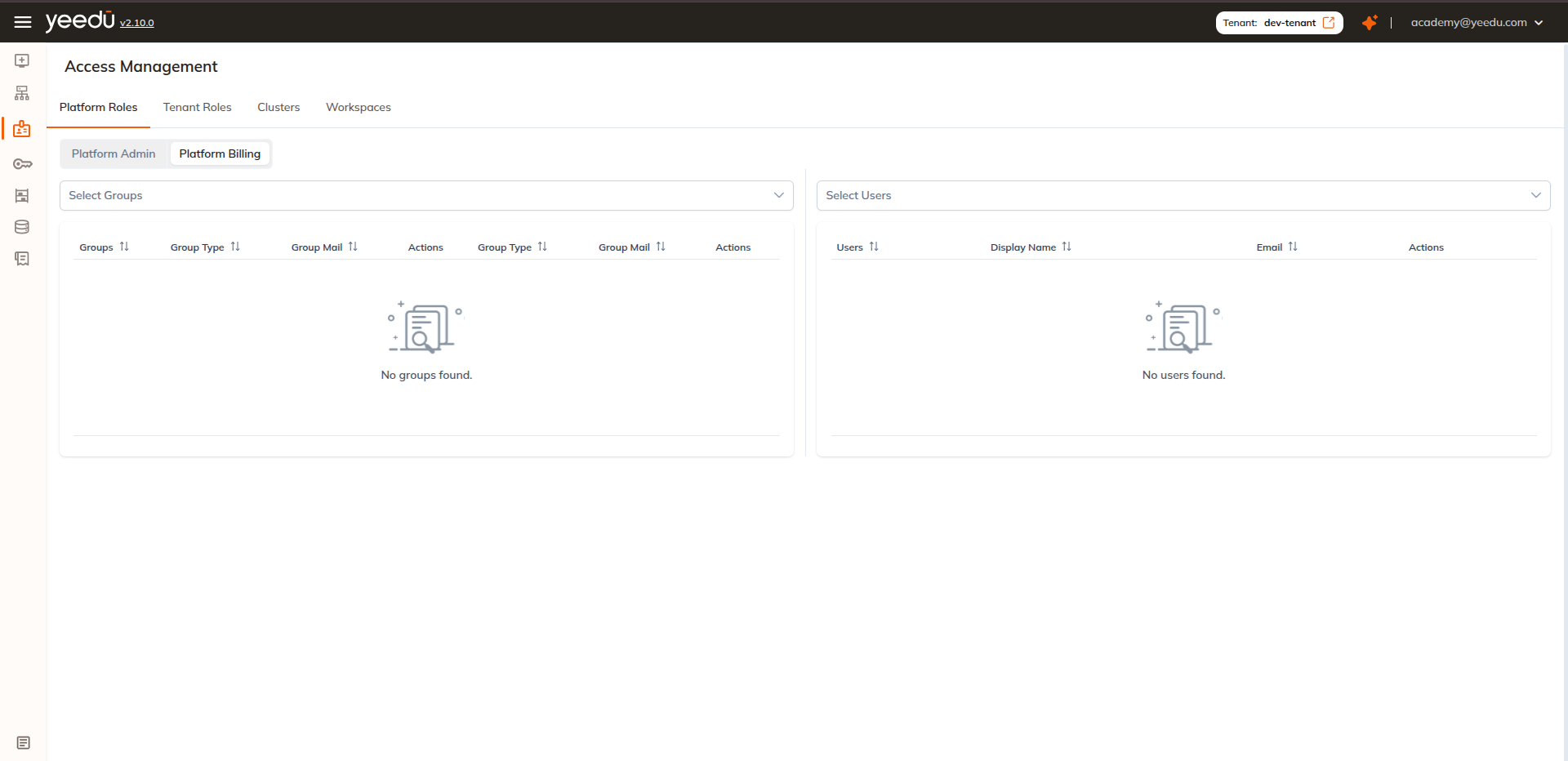
A tenant selector dropdown sits above the role pills. There are 3 levels of access management for tenants: Admin, Can Manage Cluster, User.
- Admin: Tenant-level role. Full access to create and manage all configurations, assign roles, manage clusters, and manage workspaces within the tenant.
- Can Manage Cluster: Tenant-level role. Can perform all cluster actions (create, start, stop, destroy) and manage workspaces. Can't modify tenant-level configurations or roles.
- User: Tenant-level role. Can create workspaces, notebooks, and jobs, and run them. Can't manage clusters or modify tenant-level configurations.
Only Platform admin and Admin has access to add, change, or remove roles and access. In this window, admins can option to manage permissions for a group or individual user as well.
The Groups and Users panels use the same layout and row actions as the Platform Roles tab. The empty state for the Groups panel is "No Groups Found".
Clusters
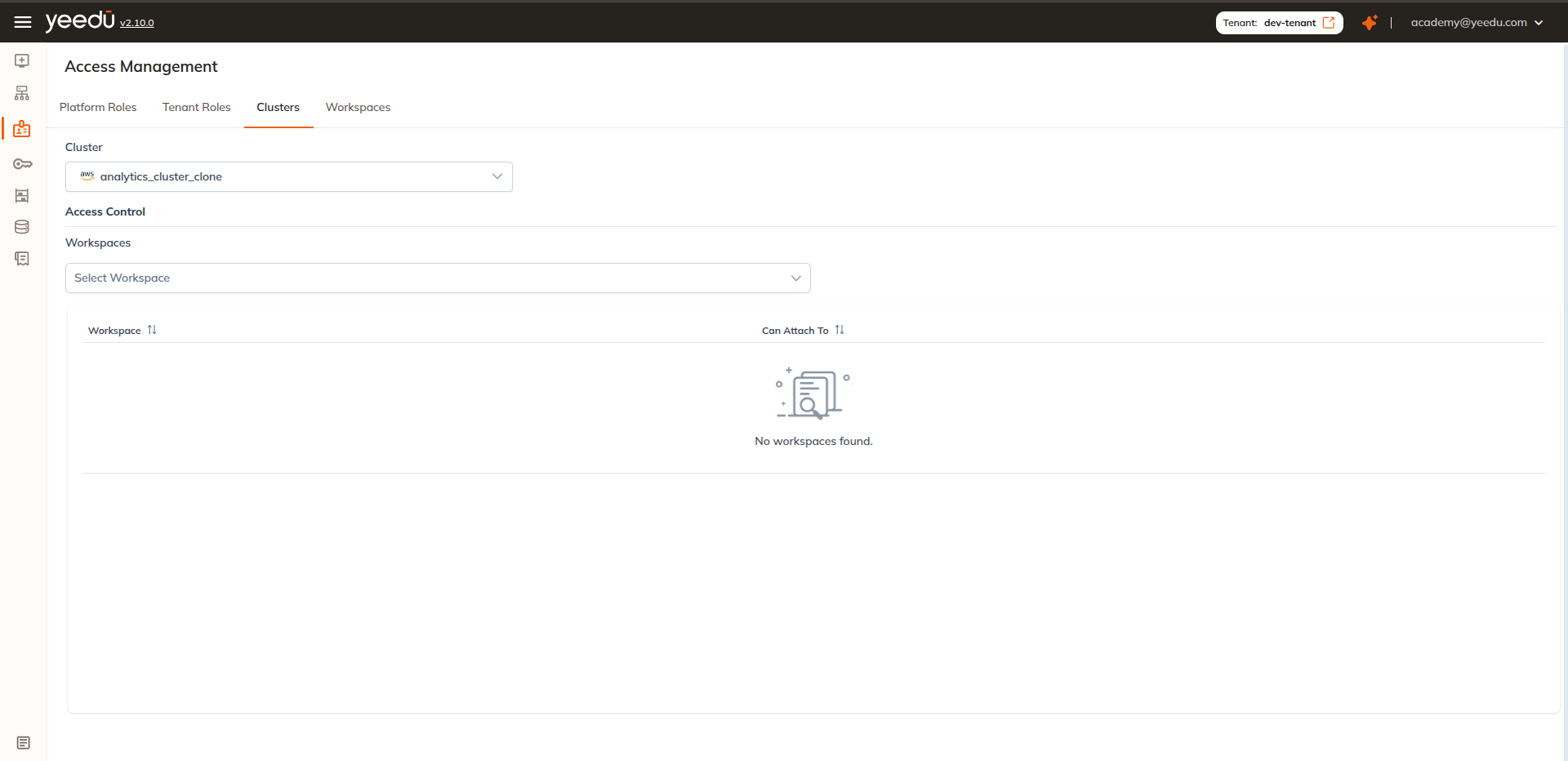
The Clusters tab allows users to manage cluster access for workspaces. A Cluster dropdown at the top selects the cluster, and the section is headed Access Control. Under the Workspaces sub-heading a Select Workspace dropdown adds workspaces to the table.
The table has two columns:
| Column | Description |
|---|---|
| Workspace | The workspace name, rendered as a link to that workspace. |
| Can Attach To | A checkbox per row. When checked, that workspace may attach jobs and notebooks to this cluster. Clearing the checkbox removes the workspace's access to the cluster. |
The list is paginated with a page size of 20.
Workspaces
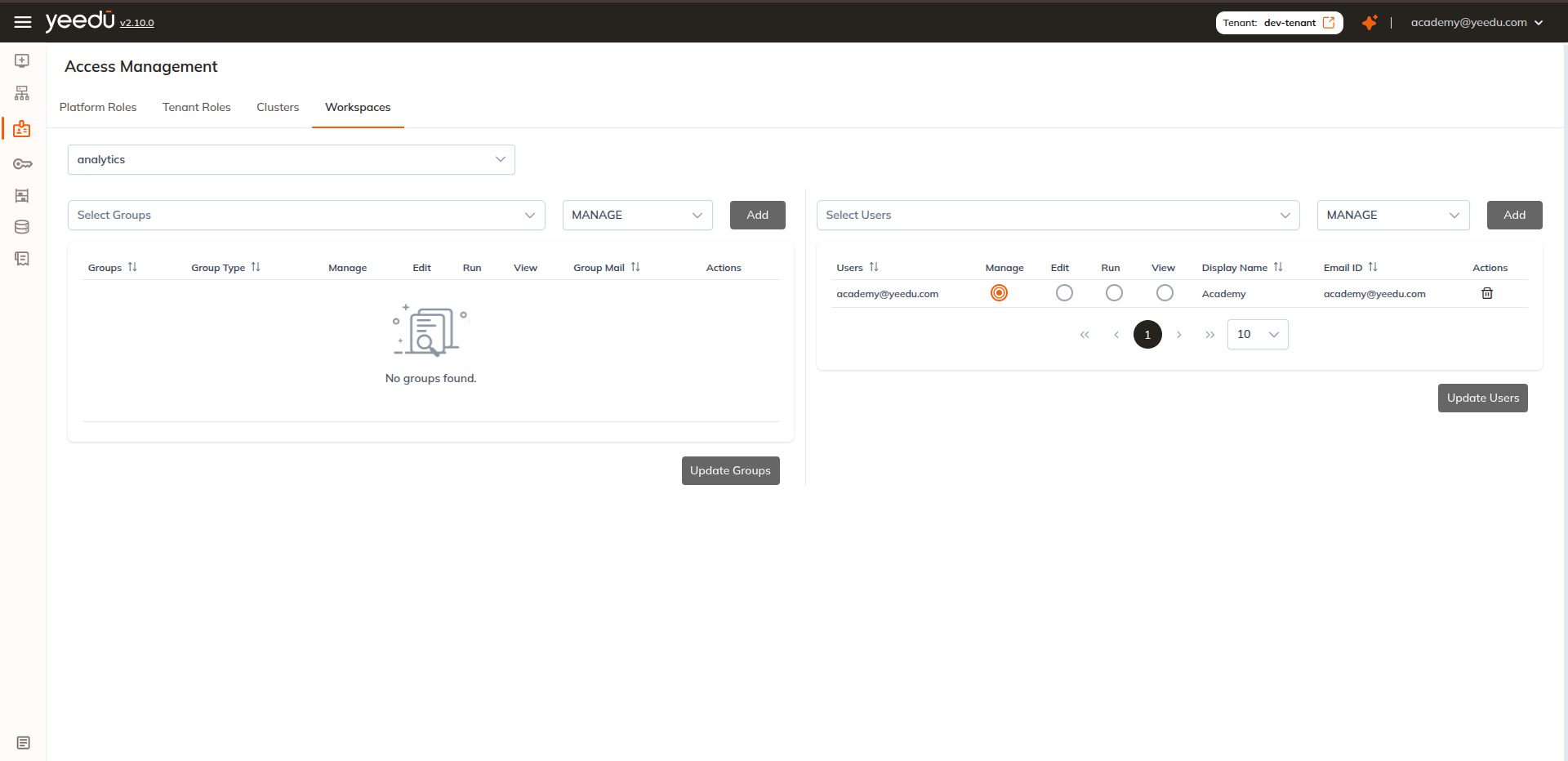
In the workspace tab of Access Management, user can manage access to the selected workspaces. A workspace selector dropdown at the top chooses the workspace.
Each panel has an add row, Select Groups / Select Users, a permission dropdown, and an Add button:
- Groups table:
Groups | Group Type | Manage | Edit | Run | View | Group Mail | Actions - Users table:
Users | Manage | Edit | Run | View | Display Name | Email ID | Actions
The permission dropdown offers four values, in this order, defaulting to MANAGE:
- MANAGE: Workspace-level permission (highest). Full control. Can manage workspace permissions, and view, run, create, edit, and delete jobs and notebooks.
- EDIT: Workspace-level permission. Can view, run, create, and edit jobs and notebooks. Can't manage workspace permissions.
- RUN: Workspace-level permission. Can view and run jobs and notebooks. Can't modify or delete existing jobs or notebooks.
- VIEW: Workspace-level permission. Read-only access to view jobs and notebooks. Can't run, edit, or delete anything.
The Manage, Edit, Run and View columns render as radio buttons on each row. Exactly one level applies per group or user, and changing the radio changes the granted level in place. Row Actions carries a delete icon.
Access matrices
These two matrices are published by the platform itself, in the info.description of the Yeedu
OpenAPI specification. They're the authoritative statement of what each role can do.
Tenant Access Matrix
What users of each tenant-level role can do: managing tenants, resources and configurations.
| Ability | Platform Admin | Admin | Can Manage Cluster | User |
|---|---|---|---|---|
| Tenant Management | ✔ | ✖ | ✖ | ✖ |
| Manage Default Configurations | ✔ | ✖ | ✖ | ✖ |
| Manage Resources | ✔ | ✔ | ✖ | ✖ |
| Manage Dependency Repository | ✔ | ✔ | ✖ | ✖ |
| Upload Files | ✔ | ✔ | ✔ | ✔ |
| Manage Clusters | ✔ | ✔ | ✔ | ✖ |
| Manage Workspaces | ✔ | ✔ | ✔ | ✔ |
Workspace Access Matrix
What each workspace permission level can do with jobs, notebooks and other workspace resources.
| Ability | MANAGE | EDIT | RUN | VIEW |
|---|---|---|---|---|
| Workspace Access Management | ✔ | ✖ | ✖ | ✖ |
| Activate or Inactivate the Job, Notebook, Workspace | ✔ | ✔ | ✖ | ✖ |
| Create or Update Job or Notebooks | ✔ | ✔ | ✖ | ✖ |
| Run or Stop the Job or Notebook | ✔ | ✔ | ✔ | ✖ |
| Read All Job or Notebooks and Runs | ✔ | ✔ | ✔ | ✔ |
The specification writes these four columns as Can Manage / Can Edit / Can Run / Can View.
The UI labels the same four levels MANAGE / EDIT / RUN / VIEW; they're the same thing.
The row "Activate or Inactivate the Job, Notebook, Workspace" is imprecise as published. Enabling
or disabling a Job or Notebook is available to EDIT; enabling or disabling the Workspace
itself requires MANAGE. The workspace-level operations are gated on MANAGE in the API
(WorkspaceService.js, enableWorkspaceByIdOrName / disableWorkspaceByIdOrName /
updateWorkspaceByIdOrName).
The recommended resolution for Yeedu UI is 1920 x 1080.